
Microsoft Excel automatically recognizes certain entries as dates, even when you intend to enter a number, product code, fraction, or other identifier. For example, typing 3/4 into a cell may cause Excel to display Mar 4 or 4-Mar, depending on your regional settings. Similarly, entering 1-2 may result in a date instead of the value you intended.
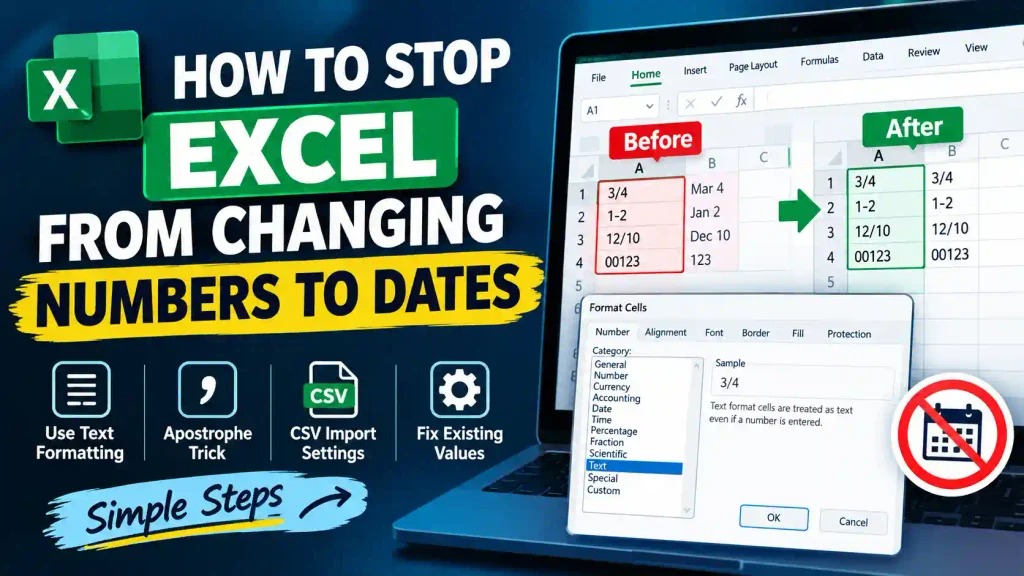
This behavior can be frustrating when working with inventory records, employee IDs, ZIP codes, financial data, scientific measurements, or imported CSV files. The good news is that you can prevent Excel from converting numbers to dates by changing the cell format before entering data or by using a few simple techniques.
In this guide, you’ll learn how to stop Excel from changing numbers to dates in Microsoft Excel for Windows and Mac, how to fix values that have already been converted, and how to avoid the problem when importing data.
Quick Answer: How Do You Stop Excel From Changing Numbers to Dates?
To stop Excel from automatically changing numbers to dates, format the cells as Text before entering your data.
- Select the cells or column where you want to enter the values.
- Press
Ctrl + 1on Windows to open the Format Cells dialog box. - Select Text under the Number tab.
- Click OK.
- Enter your numbers, codes, or other values.
On a Mac, select the cells and choose Home > Number Format > Text, or open Format Cells using Command + 1 where supported.
Important: Change the format before typing or pasting your data. Formatting a cell as Text after Excel has already converted an entry into a date does not necessarily restore the original value.
Table of Contents
- Why does Excel change numbers to dates?
- Method 1: Format cells as Text
- Method 2: Add an apostrophe before the value
- Method 3: Use a custom number format
- Method 4: Import CSV files without automatic date conversion
- Method 5: Prevent date conversion in Excel for Mac
- How to fix numbers that Excel has already changed to dates
- Common errors and fixes
- Best practices and pro tips
- Frequently asked questions
- Conclusion
Why Does Excel Change Numbers to Dates?
Excel tries to recognize the type of information you enter. When it detects a pattern that resembles a date, it may automatically interpret the entry as a date rather than as text or a general numeric value.
For example, depending on your Excel version, regional settings, and the exact input, these entries may be interpreted differently:
| What you enter | Possible Excel interpretation |
|---|---|
3/4 | March 4 or April 3 |
1-2 | January 2 or February 1 |
12/10 | December 10 or October 12 |
00123 | 123, with leading zeros removed |
3-4 | A date or another recognized value |
Excel stores genuine dates as serial numbers and applies a date format to display them in a readable form. This means a date displayed as Mar 4 is not necessarily stored as the text Mar 4.
The issue becomes especially important when you work with product codes, part numbers, employee identifiers, or other values that resemble dates but must remain unchanged.
For example, a product code such as 3-4 may need to remain exactly as entered. If Excel converts it to a date, the original code can be difficult or impossible to recover reliably without the source data.
The most effective solution depends on whether you are entering new data, importing a file, or correcting values that Excel has already converted.
Method 1: Format Cells as Text Before Entering Data
Best for: Product codes, identification numbers, fractions entered as text, and columns containing mixed numbers and letters.
Formatting cells as Text tells Excel to treat new entries as text instead of interpreting them as dates or ordinary numbers.
Step-by-step instructions
Step 1: Select the cells
Open your Excel worksheet and select the cells or entire column where you want to enter your data.
For example, if product codes will be entered in column A, click the A column heading to select the whole column.
Step 2: Open Format Cells
Press Ctrl + 1 on your Windows keyboard.
Alternatively, right-click the selected cells and choose Format Cells.
Step 3: Select Text
In the Format Cells dialog box:
- Open the Number tab.
- Select Text from the Category list.
- Click OK.
Step 4: Enter your values
Now type values such as:
3/41-200123ABC-123
Excel should preserve these entries as text rather than automatically converting date-like entries into dates.
When should you use this method?
Use Text formatting when the exact characters matter more than mathematical calculations. It is particularly useful for inventory codes, ZIP codes with leading zeros, account references, and imported identifiers.
Remember that text-formatted numbers generally cannot be used directly in arithmetic calculations without conversion.
Method 2: Add an Apostrophe Before the Value
Best for: Entering a few date-like values quickly without changing the formatting of an entire column.
You can force Excel to interpret a single entry as text by placing an apostrophe before it.
For example, instead of typing:
3/4
Type:
'3/4
Excel displays the value as 3/4 in the cell. The apostrophe is normally not displayed as part of the cell’s contents, although it indicates that the entry is stored as text.
You can also use this technique for entries such as:
'1-2'00123'12/10
Advantages of this method
- It is quick and easy.
- You do not need to change the cell format.
- It works well for occasional entries.
- It helps preserve leading zeros and date-like codes.
Limitations
Adding an apostrophe to every value can be inconvenient when working with hundreds or thousands of rows. In those situations, formatting the entire column as Text is usually more practical.
Also, an apostrophe entered as a text prefix is not the same as including an apostrophe character in the underlying text itself.
Method 3: Use a Custom Number Format
Best for: Numeric values that must retain a specific display format.
Sometimes, you want Excel to keep a value numeric rather than convert it to text. In that situation, a custom number format may be more appropriate.
For example, suppose you enter the number 123 and want Excel to display it as 00123.
Follow these steps:
- Select the required cells.
- Press
Ctrl + 1. - Select Custom under the Number tab.
- Enter
00000in the Type field. - Click OK.
Excel will display 123 as 00123, while the underlying numeric value remains 123.
Can custom formatting prevent date conversion?
Not reliably on its own. Custom formatting controls how Excel displays a value after it has been interpreted. It is not a general method for preventing automatic date recognition.
If you need to preserve an entry such as 3-4 as an exact product code, use Text formatting or the apostrophe method instead.
Choose a custom number format when the underlying value should remain numeric and only its appearance needs to change.
Method 4: Import CSV Files Without Automatic Date Conversion
Best for: CSV files containing product codes, employee IDs, dates written in unusual formats, or other identifiers.
Excel may automatically convert date-like values when you open a CSV file by double-clicking it. For example, a column containing 3-4 may become a date, and a code such as 00123 may lose its leading zeros.
To avoid this problem, import the file and specify the column data type before loading it.
Step-by-step instructions
- Open a blank Excel workbook.
- Go to Data > From Text/CSV.
- Select the CSV file you want to import.
- Review the preview and choose the available transformation or import options.
- If Excel offers an automatic data type detection setting, disable it when appropriate.
- If you need to specify individual column types, select Transform Data to open Power Query.
- Select the column containing the values you want to preserve.
- Set its data type to Text.
- Confirm that the preview displays the original values correctly.
- Select Close & Load to import the data.
The exact options may differ between Excel versions. In Power Query, setting a column to Text is particularly useful for preserving identifiers that should not be interpreted as dates.
Pro tip: Always inspect the imported results before saving over your original file. Once Excel has converted a value and discarded information such as leading zeros, changing the format afterward may not restore it.
Method 5: Prevent Excel From Changing Numbers to Dates on a Mac
The same basic principle applies to Excel for Mac: format the cells as Text before entering date-like values.
Instructions for Mac users
- Open your Excel workbook.
- Select the cells or column you want to protect.
- Open the Home tab.
- Find the Number Format dropdown.
- Select Text.
- Enter your values and check that they remain unchanged.
Depending on your Excel for Mac version, you may also be able to open Format Cells using Command + 1.
If you are importing a CSV file, use the Data import workflow and specify Text for the relevant columns before loading the data.
For more Mac productivity guidance, see our guide on how to add a printer to a Mac.
How to Fix Numbers That Excel Has Already Changed to Dates
If Excel has already converted your entry, you may be able to correct its appearance, but restoring the original value depends on whether Excel retained the necessary information.
Fix 1: Check the original cell value
Select the cell and look at the formula bar. If Excel displays a date, the entry may already have been stored as a date serial number.
Changing the cell format to Text afterward does not necessarily restore the original characters.
Fix 2: Re-enter the original value
If you know the original value, the safest approach is to format the cell as Text and enter the value again.
For example:
- Select the affected cell.
- Change its format to Text.
- Delete the converted value.
- Type the original value again, using an apostrophe prefix if necessary.
- Verify that Excel displays the intended value.
Fix 3: Recover the value from the source
If the original value is unknown, check the source CSV file, database, or backup. This is especially important for product codes and identifiers where a converted date cannot reliably reveal the original text.
Fix 4: Use Undo immediately
If the conversion just happened, press Ctrl + Z on Windows or Command + Z on Mac. Undo may restore the original entry, allowing you to format the cell correctly before entering it again.
Common Errors and Fixes
| Problem | Likely cause | Recommended fix |
|---|---|---|
3/4 becomes a date | Automatic date recognition | Format the cell as Text before entry |
| Leading zeros disappear | Excel treats the entry as a number | Use Text formatting or a suitable custom number format |
| Existing dates remain dates after formatting as Text | Excel already converted the value | Undo or re-enter the original value |
| CSV codes change during import | Automatic type detection | Import through Power Query and set the column to Text |
| Numbers stored as text do not calculate | Text values are not numeric values | Convert them to numbers only when calculations are required |
| Date interpretation differs between computers | Regional date settings differ | Use an unambiguous date format for genuine dates and Text for identifiers |
Best Practices and Pro Tips
Follow these recommendations to prevent data errors in future Excel worksheets.
1. Format columns before entering data. If a column will contain codes, identifiers, or date-like strings, set it to Text before typing or pasting values.
2. Distinguish numbers from identifiers. A quantity such as 125 may need to be numeric, while an employee ID such as 00125 may need to remain text. Choose the format based on the purpose of the data.
3. Be careful when copying and pasting. If you paste values from another workbook, website, or CSV file, inspect the results. Depending on the source and paste method, Excel may reinterpret the entries.
4. Preserve a backup of important source data. When working with financial records, inventory codes, or customer identifiers, keep an unchanged copy of the original file.
5. Use consistent formats across workbooks. Establish clear rules for identifiers, dates, currency, and quantities. Consistency reduces import problems and makes reports easier to maintain.
6. Do not confuse display formatting with data conversion. A custom number format changes how a number appears. Text formatting changes how new entries are interpreted. These options serve different purposes.
7. Check your imported data before sharing it. If a workbook is used by colleagues or clients, confirm that codes, dates, and leading zeros remain correct before distributing it.
If your Excel workflow involves printing reports or worksheets, you may also find these Multicare Technical guides helpful: how to change default printer settings in Windows, Mac, Word, Chrome, Tally, and SAP and how to share a printer between 32-bit and 64-bit systems.
Frequently Asked Questions
1. How do I stop Excel from automatically changing numbers to dates?
Format the relevant cells as Text before entering the values. Select the cells, press Ctrl + 1 on Windows, choose Text, and click OK. For individual entries, you can also add an apostrophe before the value.
2. Why does Excel convert 3/4 into a date?
Excel recognizes 3/4 as a possible date based on its automatic data recognition and regional settings. Depending on the configuration, it may interpret the entry as March 4 or April 3. Format the cell as Text first if you intend to preserve 3/4 as a string.
3. How do I stop Excel from changing numbers to dates in a CSV file?
Import the CSV file through Data > From Text/CSV instead of opening it directly. If available, use Power Query to set the relevant column’s data type to Text before loading the data.
4. Can I change a date back to the original number or code?
Not always. If Excel has already converted an entry into a date, the original input may no longer be recoverable from the displayed date alone. Use Undo, restore the original value from a backup, or retrieve it from the source file.
5. Does formatting a cell as Text affect calculations?
Yes. Values stored as text may not behave like numeric values in mathematical operations. Use Text formatting for identifiers and codes that must remain unchanged, and use numeric formatting for values that need to participate in calculations.
Conclusion
Excel’s automatic date recognition is useful when you enter genuine dates, but it can cause problems when working with product codes, identifiers, fractions, and imported data.
The most reliable way to stop Excel from changing numbers to dates is to format the relevant cells or columns as Text before entering the data. For occasional entries, an apostrophe prefix is a quick alternative. For CSV files, import the data carefully and specify Text for columns that must retain their original values.
By choosing the correct data type before entering or importing information, you can preserve your values, prevent unnecessary corrections, and maintain more reliable Excel worksheets.